
When you move to a new phone, your ArcherySuccess data - rounds, journal entries, gear, notes, scores - can travel with you using a cloud backup and restore. This guide walks through the full process for both iOS and Android.
What you need
- Both phones updated to ArcherySuccess version 6.1 or later.
- A cloud storage account that both phones can access - Google Drive or iCloud.
Where to find Backup in the app
The Backup page is in app Settings → Backup:
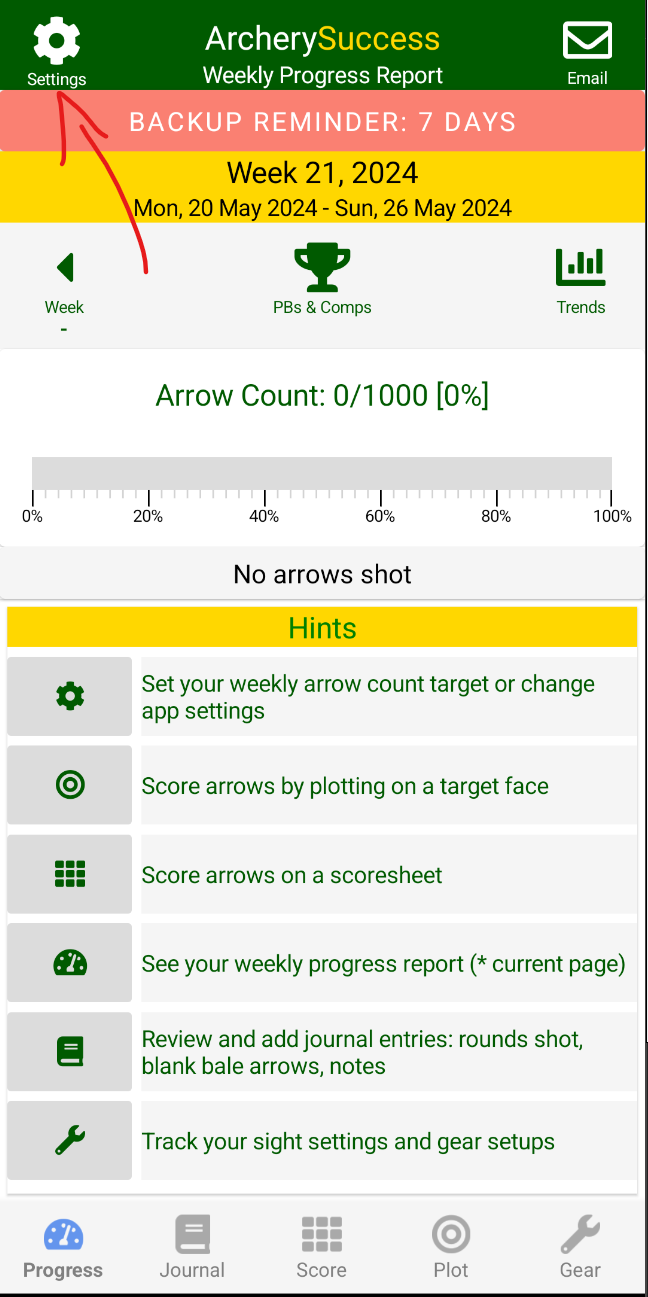
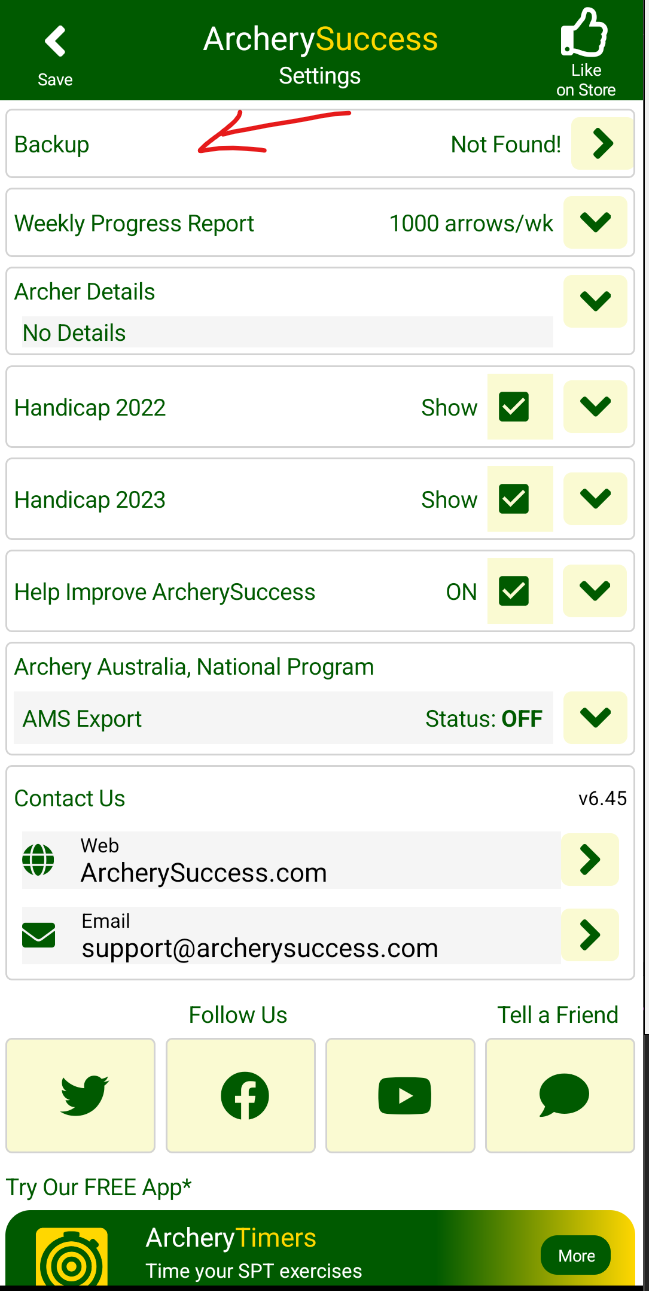
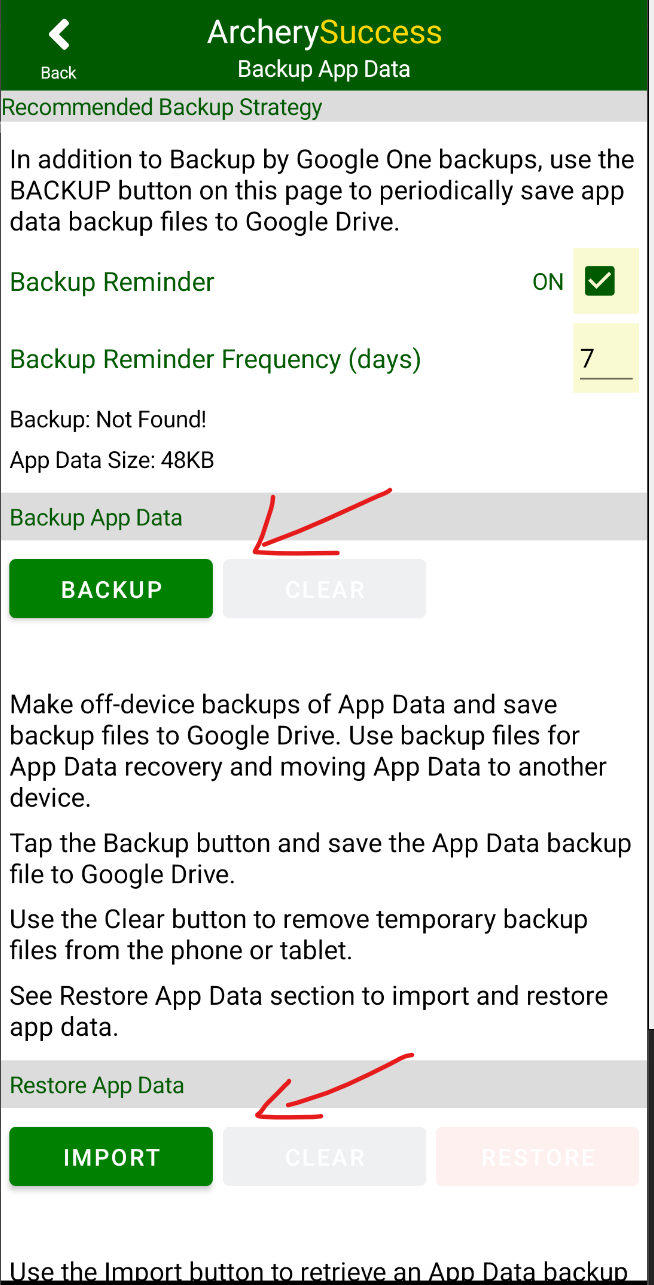
The procedure
- Old and new phone: make sure both phones have ArcherySuccess version 6.1 (or later) installed.
- On the old phone: open the Backup App Data page, tap the Backup button to create an ArcherySuccess App Data backup, and choose to save the file to Google Drive or iCloud.
- On the new phone: on the Backup App Data page, tap the Import button and import the backup file from Google Drive or iCloud.
⚠️ Warning: this step will replace the app database and data on the new phone with the data from the old phone.
- On the new phone: tap the Restore button to restore the imported backup file.
- On the new phone: close the app and reopen it to reload the app data.
- On the new phone: confirm that the journal entries from the old phone now appear as expected.
Switching between Apple and Android?
The Apple App Store and Google Play are run by different companies, so a new app purchase is required when switching platforms. See: Do I need to buy the app again if I switch from Apple to Android?
For other backup questions see How do I backup my ArcherySuccess data? on the Support page.