
In ArcherySuccess, field, 3D, 2D and animal rounds all use the same scoring flow: pick the round, then change the target details per distance as you progress through the course. You can plot arrows on the target face, enter scores via a scorecard, or switch between the two at any time - and create or clone custom rounds when no built-in round matches your local layout.
This guide covers:
- Plot or score?
- Starting a new round
- Changing target details per distance
- Viewing the scorecard
- Custom and cloned rounds
Plot or score?
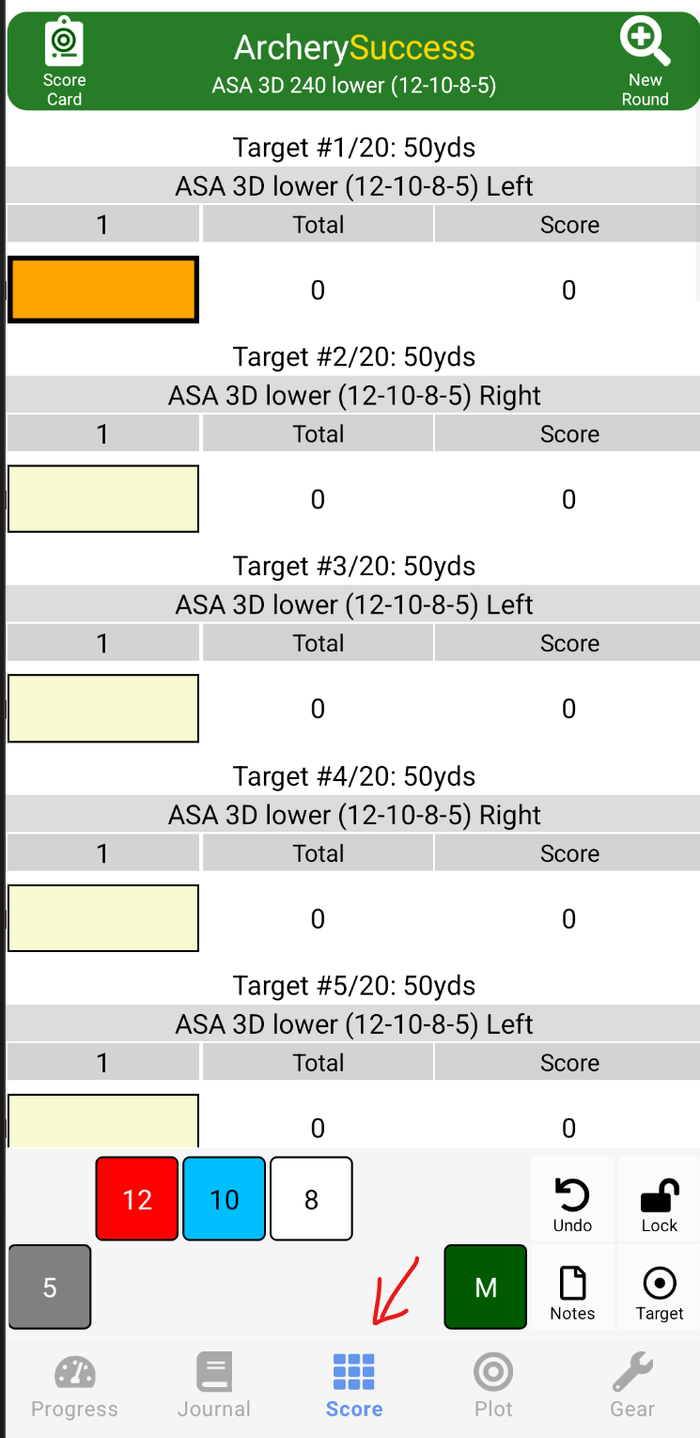
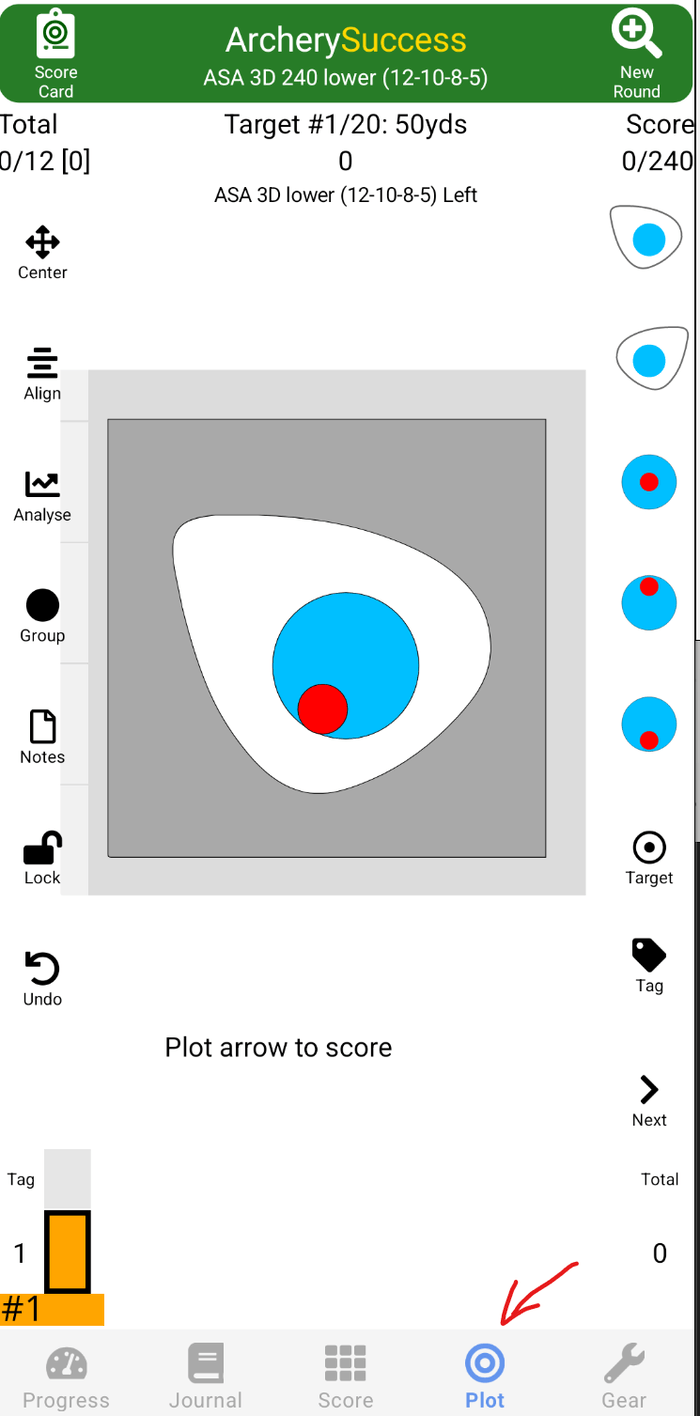
Rounds can be scored two ways, and you can switch between them mid-round:
- Plot page - tap arrow impact points on the target face shown in the app; the arrow is scored automatically based on where it lands. Tagged arrows and group analysis are available from the Plot page.
- Score page - tap scoring buttons on a scoresheet to enter scores directly, without plotting.
Starting a new round
There are two ways to start:
From the Score or Plot tab:
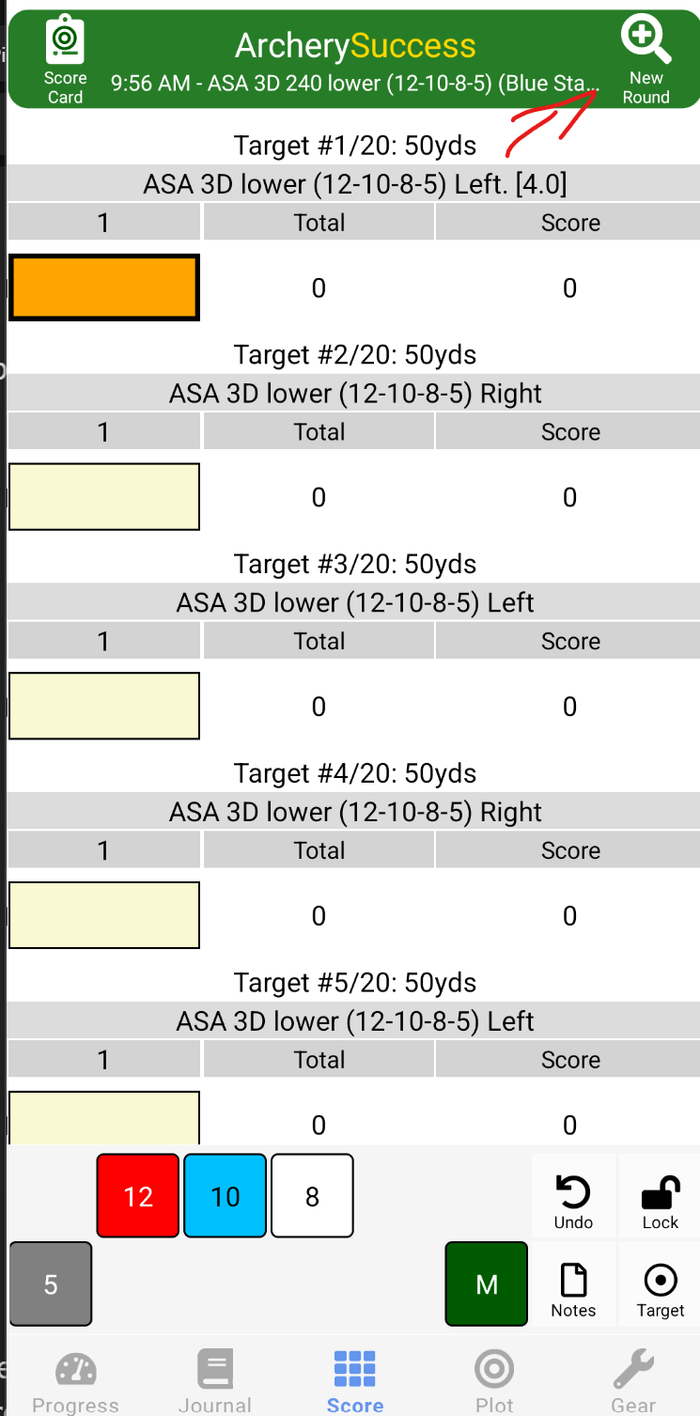
- Tap the New Round button (top right of the Score and Plot pages).
- Search for the round you want - for example, type ASA to filter to ASA rounds.
- Tap the round to begin scoring.
From the Journal tab:
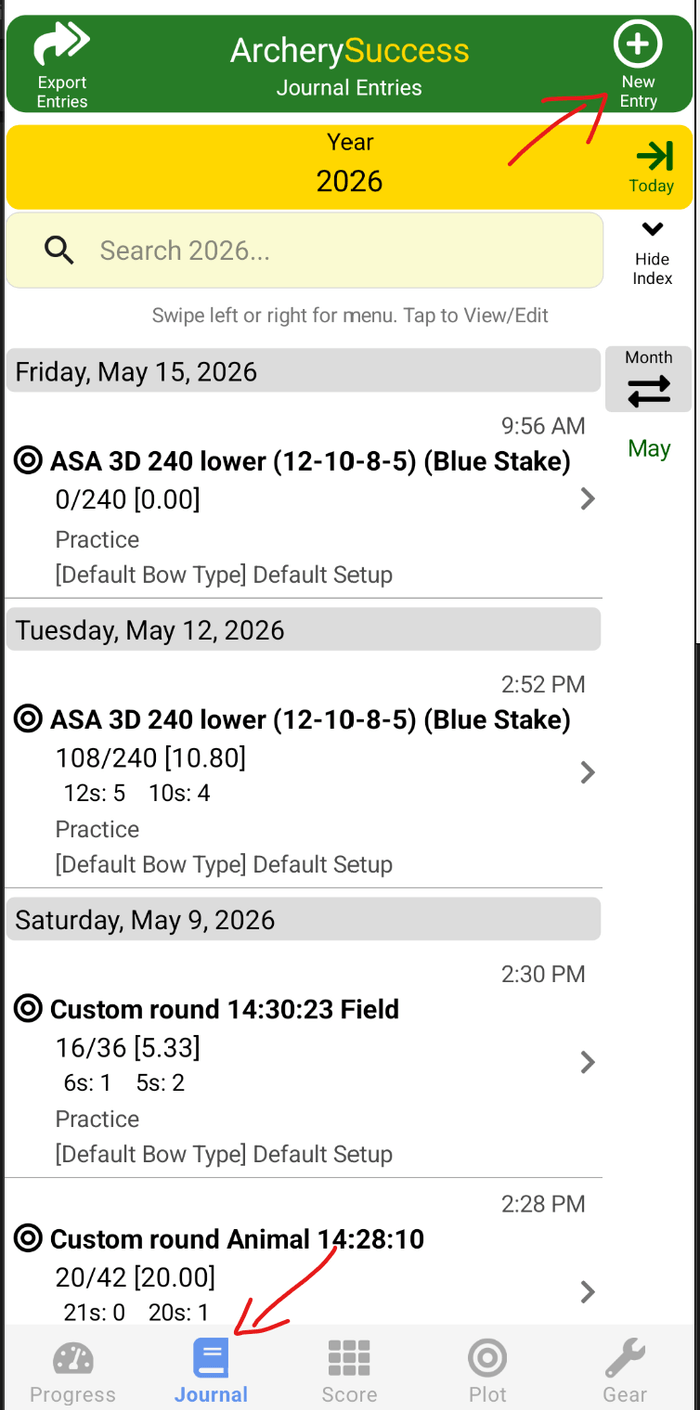
- Tap New Entry.
- Tap New Round.
- Search for the round and tap it to begin.
Changing target details per distance
For field, 3D, 2D and animal rounds, target details (distance, target face, target size) can be changed per distance as you score. This is how ArcherySuccess handles real-world field layouts that don't match a fixed template.
To change the target details for the distance you're shooting:
- On the Score or Plot page, tap the Target button.
- The Change Target options page appears (the example shows options for an ASA round).
- Set the distance, target face, and any other details to match what you're shooting at this stake.
- Continue scoring - the new target details apply to this distance.
The Target button sits on the right of the bottom tab bar - same position on both the Score page and the Plot page:
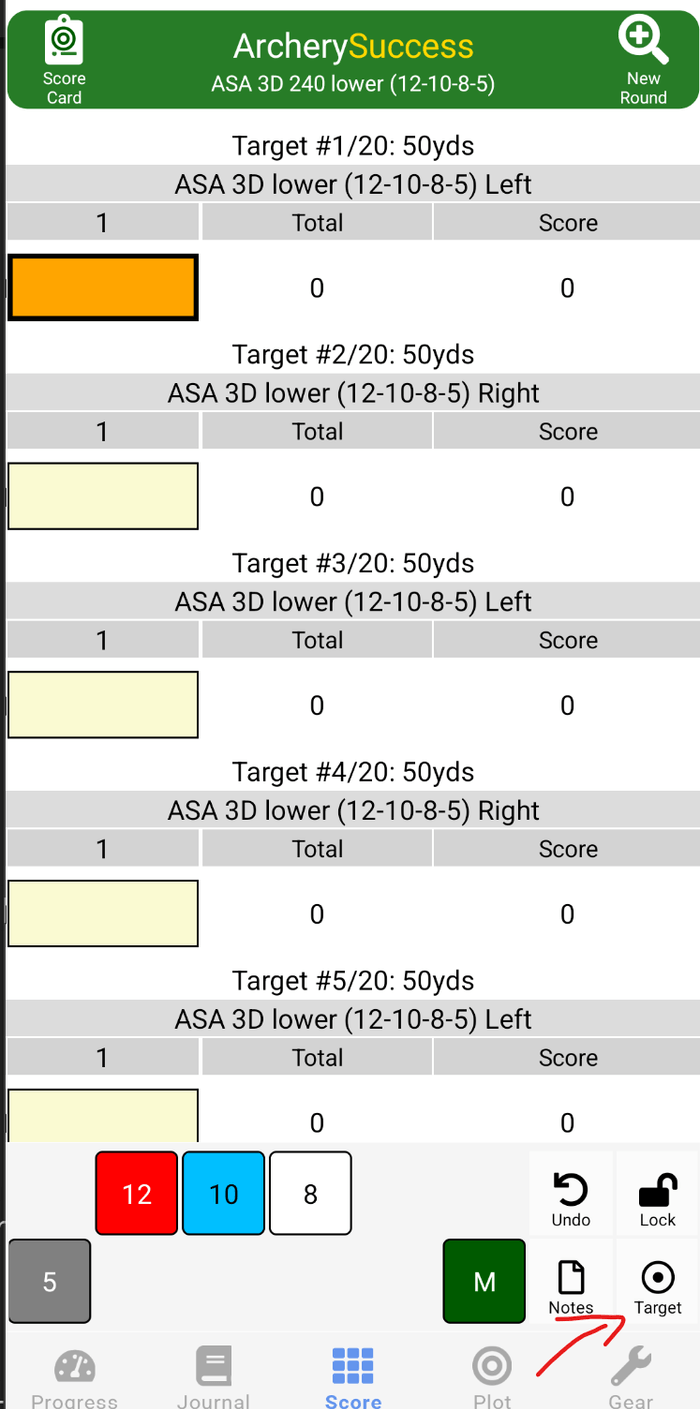
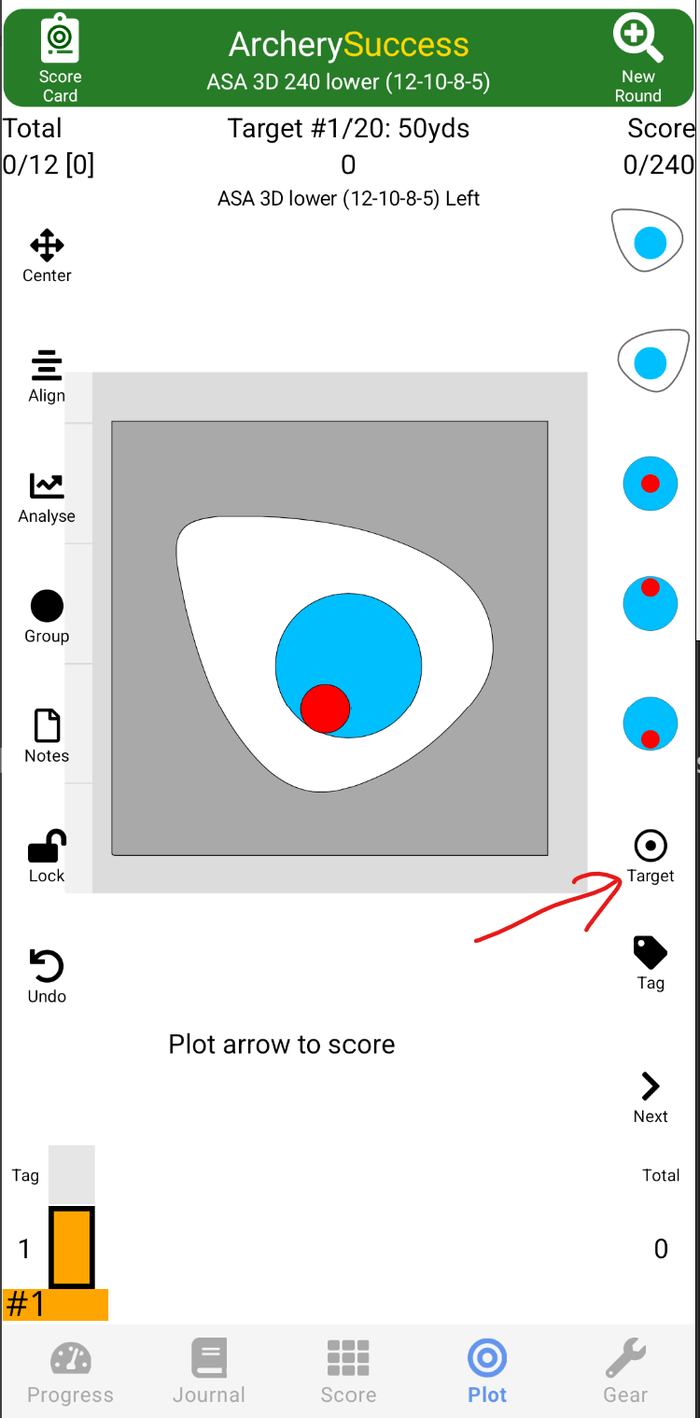
Tapping it opens the Change Target options page:
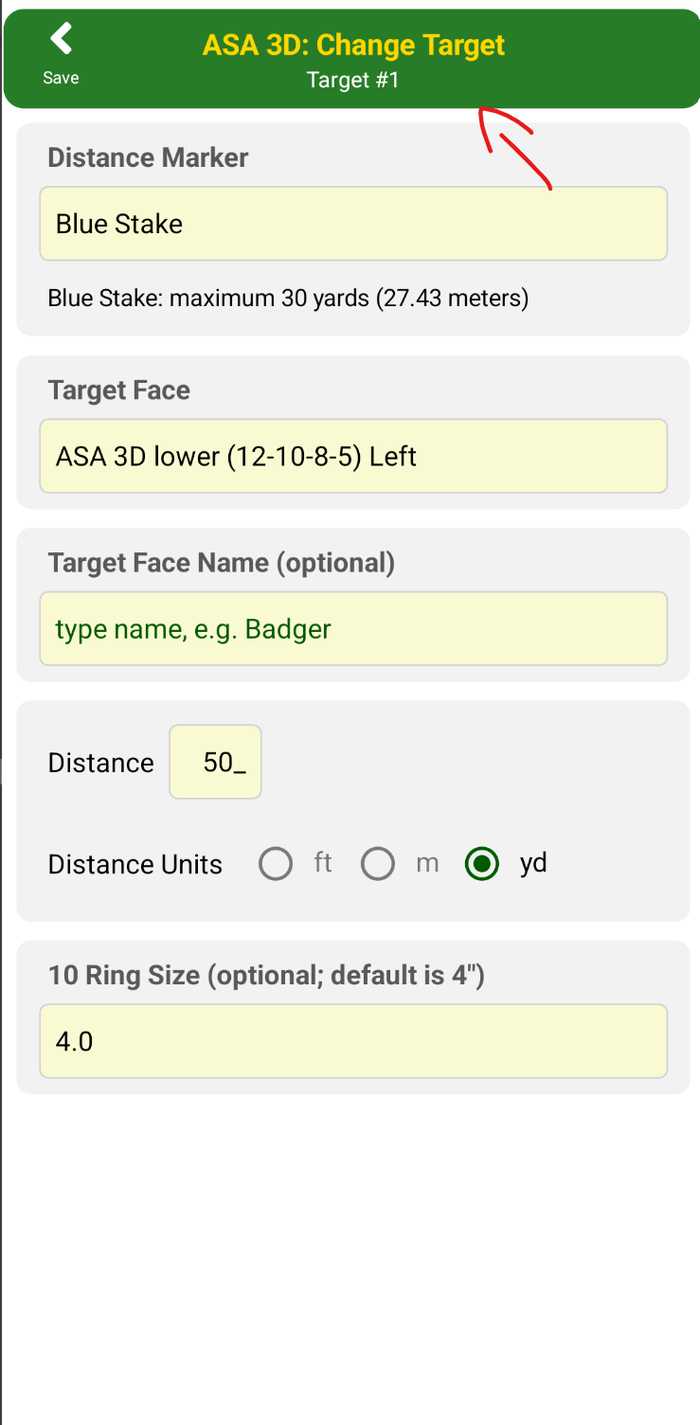
As you progress through the course, adjust the target details to match each stake.
Viewing the scorecard
For a round in progress:
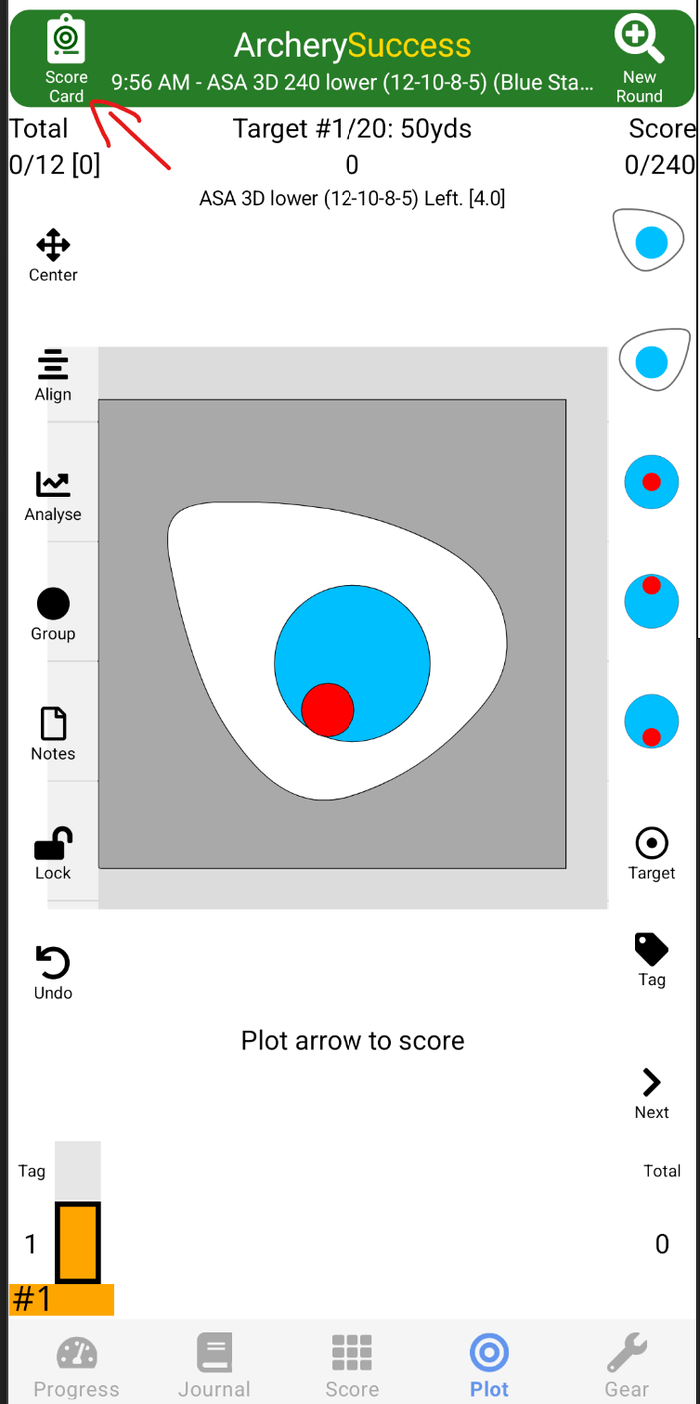
- Tap the Score Card button (top left of the Score or Plot pages).
- To see the target plots for a distance, tap the Distance button on the scorecard.
For a completed round:
- Open the Journal tab and tap the entry for the round to show its scorecard.
Custom and cloned rounds
If you frequently shoot a layout that isn't in the built-in list - or that varies stake-by-stake - create a custom round.
Create a custom round from scratch:
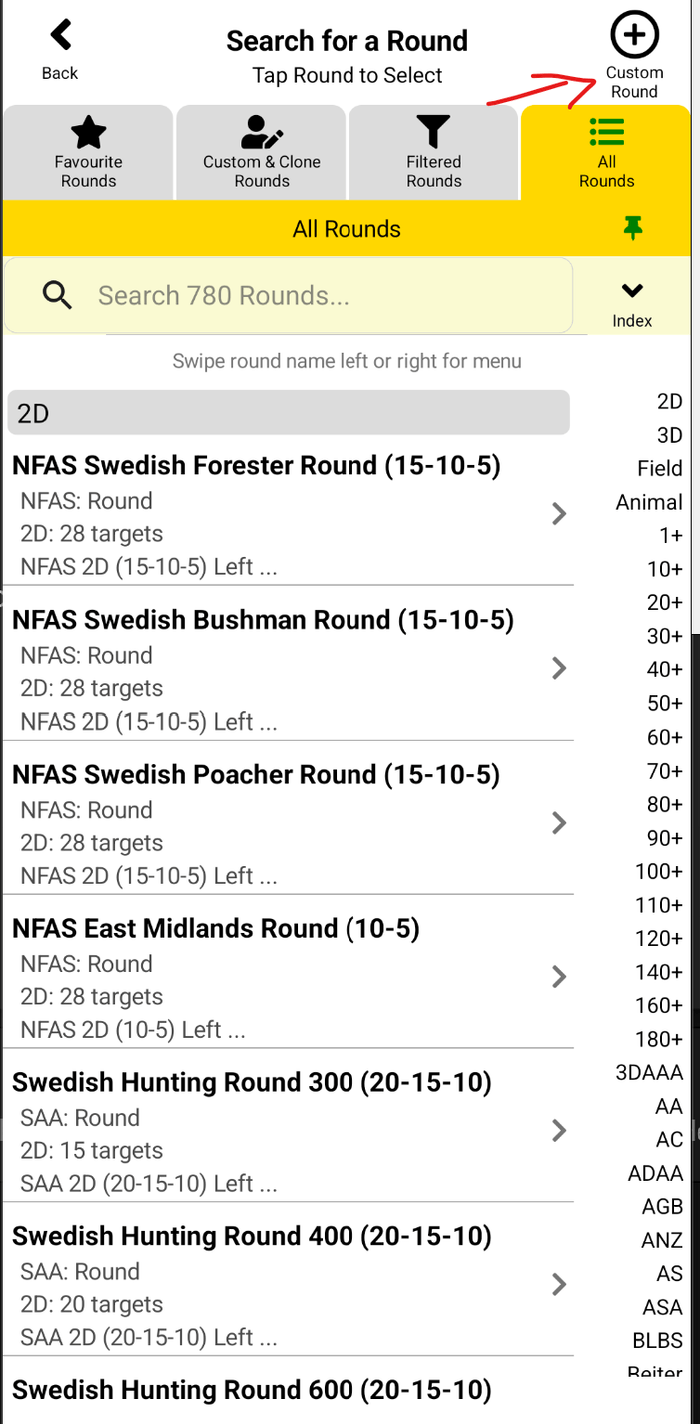
- On the Search for a Round page, tap the Custom Round button (top right).
- Define the round details (distances, target faces, ends, arrows per end, scoring).
Clone an existing field, 3D, 2D or animal round to capture its target details as a new custom round:
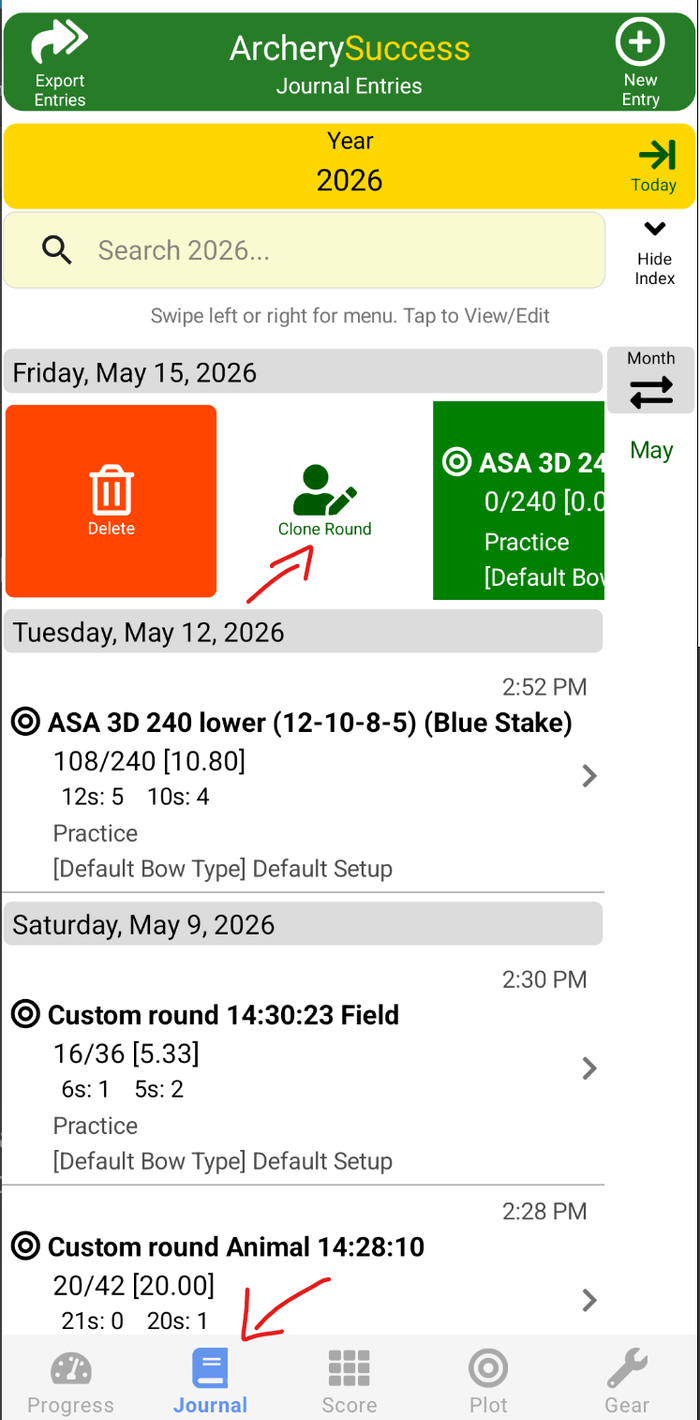
- On the Journal page, swipe right on the round entry.
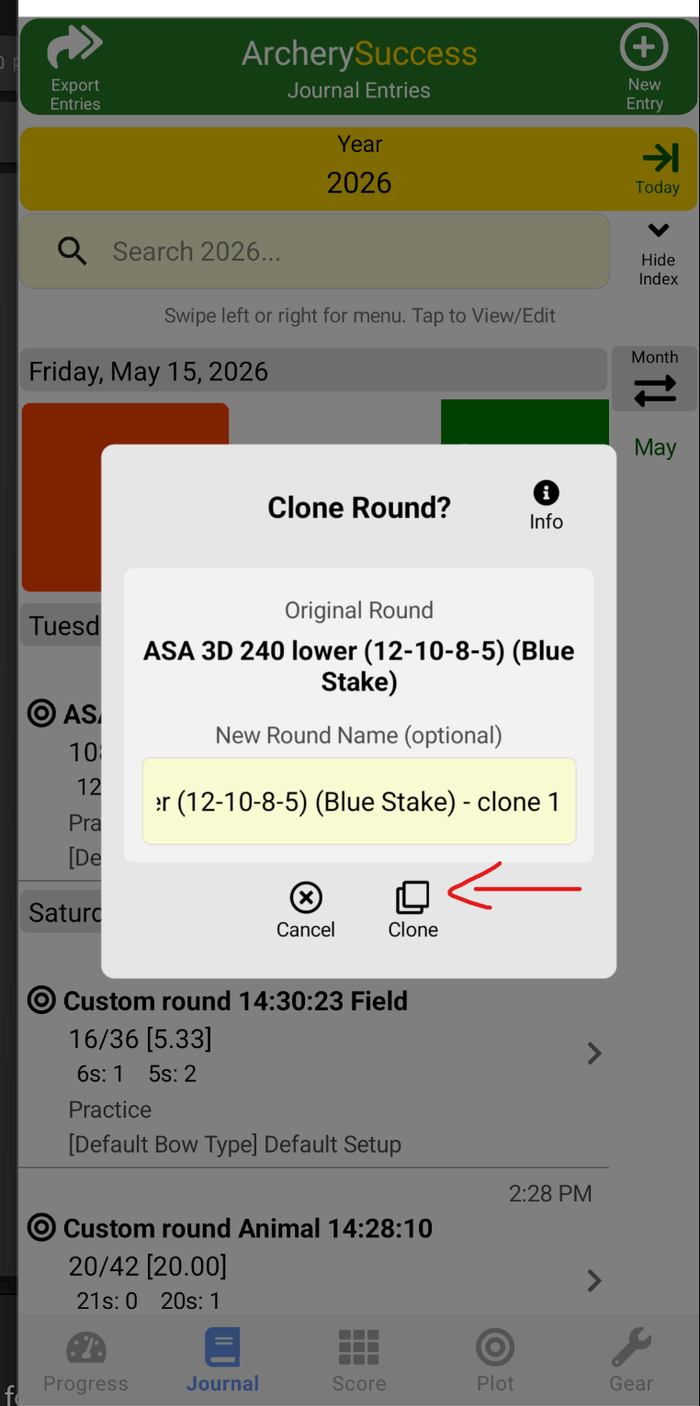
- Tap the Clone Round button - the Clone Round popup appears.
- Tap Clone to copy the round's target details into a new custom round.
Cloning is the fastest way to save a one-off course layout you may want to shoot again.
Still stuck? Check the Support page for more how-to guides, or contact us - we typically reply within 48 hours.